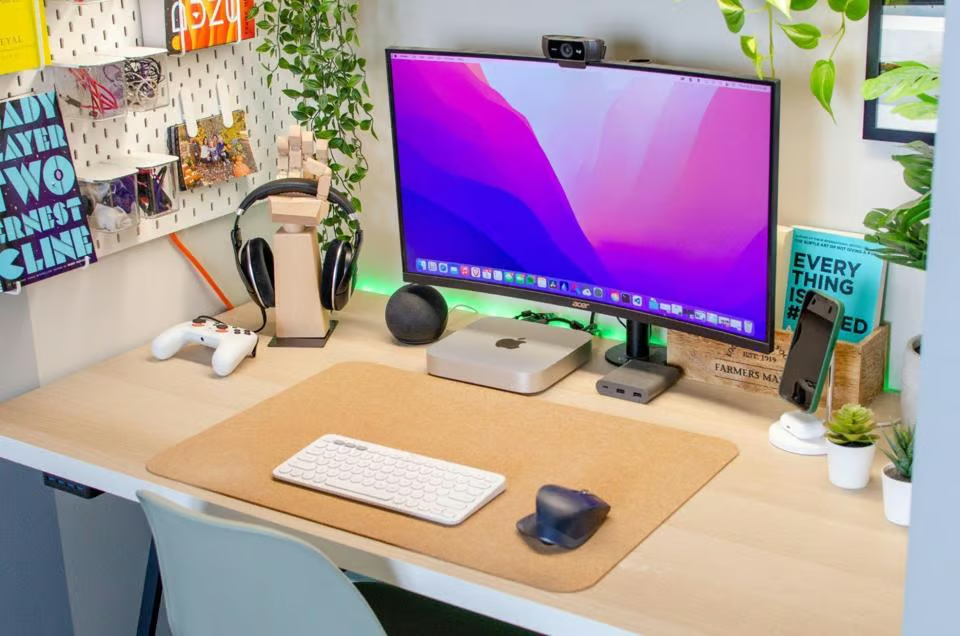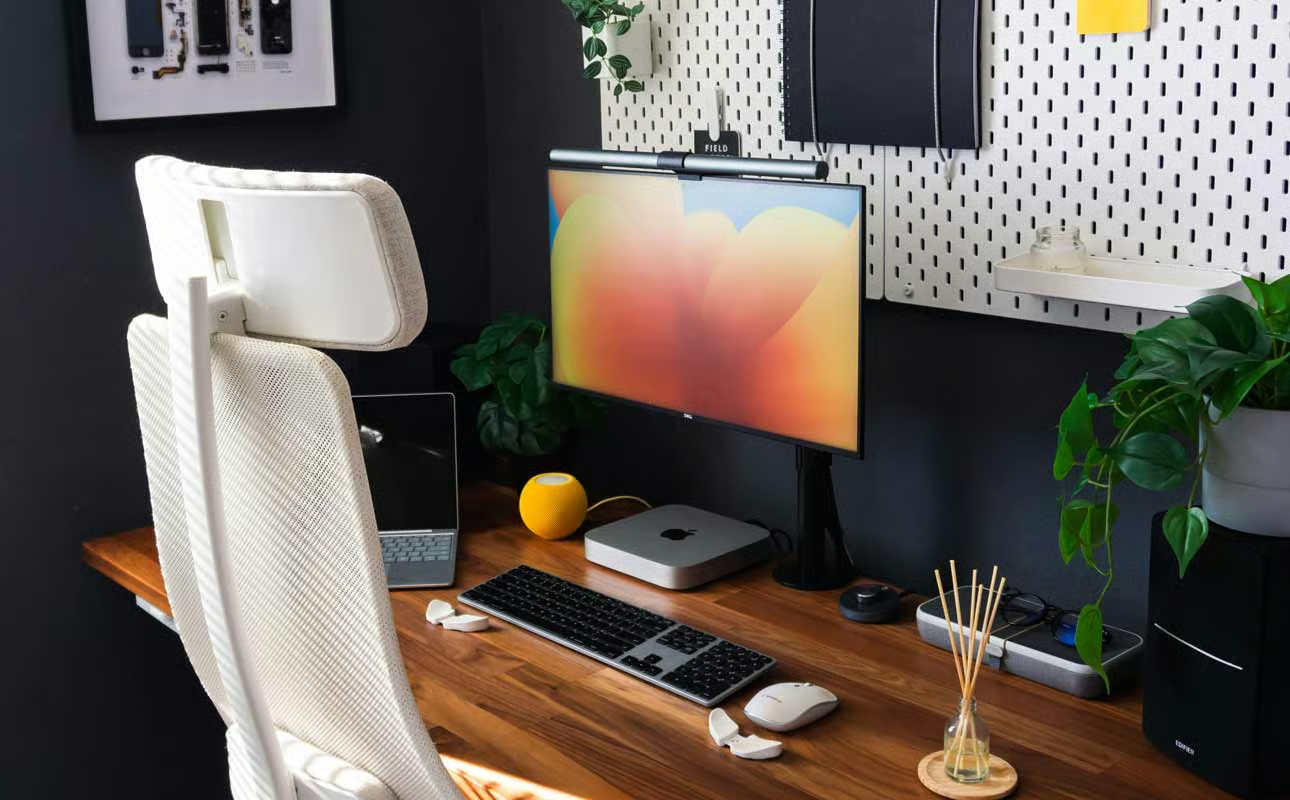
Top 5 Work From Home Essentials That Actually Help
The internet is flooded with “must-have” work from home gadgets—most of which end up in drawers within a week. After years of remote work and countless product tests, I’ve identified the five essentials that genuinely make working from home better. No gimmicks, no novelty items—just practical tools that solve real problems.
The common thread? Each addresses a fundamental challenge of home-based work: physical comfort, professional presence, or operational efficiency. If it doesn’t tick one of these boxes, it doesn’t belong on this list.
1. A Proper External Monitor
This is non-negotiable. Staring at a 13-inch laptop screen all day causes eye strain, neck pain, and reduced productivity. Studies consistently show that larger screens (or dual monitors) improve work output by 20-30%.
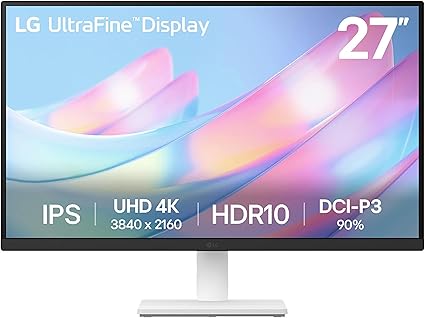
LG 27UK850-W 27″ 4K UHD IPS Monitor with USB-C
4K resolution for crisp text and images. USB-C connection provides video and charges your laptop with one cable. Height-adjustable stand for proper ergonomics. AMD FreeSync for smooth video calls.
View on AmazonThe USB-C connectivity is key—one cable does video, data, and charging. Your desk stays clean, and setup takes seconds. For more screen productivity tips, see our time-saving tech upgrades guide.
2. Quality Webcam for Professional Presence
Your laptop’s built-in webcam was designed as an afterthought. In a world where first impressions happen over video, a quality external webcam is a career investment.

Logitech C920x HD Pro Webcam
1080p Full HD video for crystal-clear calls. Dual stereo microphones with noise reduction. Automatic light correction for any lighting conditions. The industry standard for remote professionals.
View on Amazon“People treat you differently when you look professional on video calls. This webcam paid for itself in client confidence within the first month.”
3. Ergonomic Chair (Or Upgrade Your Existing One)
Your body spends 40+ hours a week in your work chair. This is not the place to cut corners. However, if you can’t invest $500+ in a premium chair, ergonomic accessories can transform any chair.
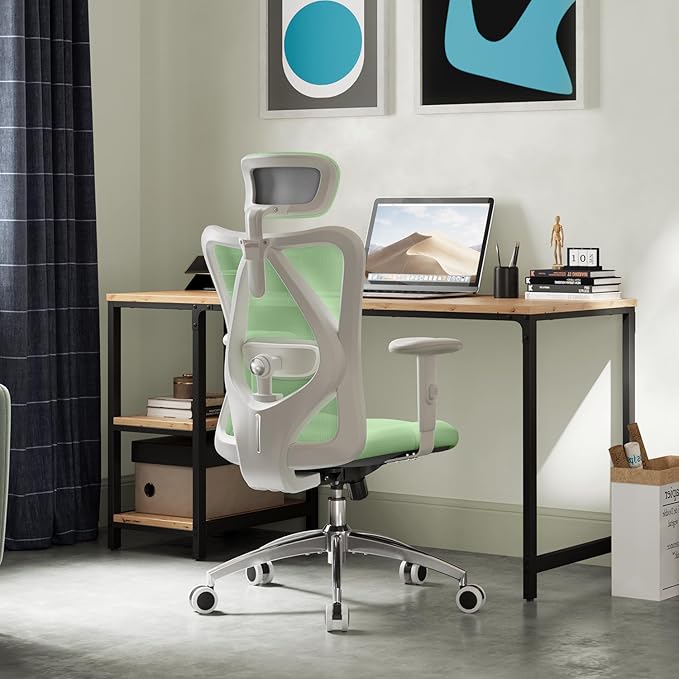
SIHOO M18 Ergonomic Office Chair
Adjustable lumbar support, headrest, and armrests. Breathable mesh back prevents heat buildup. Supports up to 300 lbs. Premium ergonomics at a fraction of the price of high-end brands.
View on AmazonIf upgrading your chair isn’t in the budget, start with a lumbar pillow and seat cushion. They make a massive difference. More ergonomic solutions in our productivity tools guide.
4. Dedicated Desk Lamp with Proper Lighting
Poor lighting causes eye fatigue, headaches, and impacts video call quality. A quality desk lamp with adjustable color temperature transforms your workspace and your on-camera appearance.
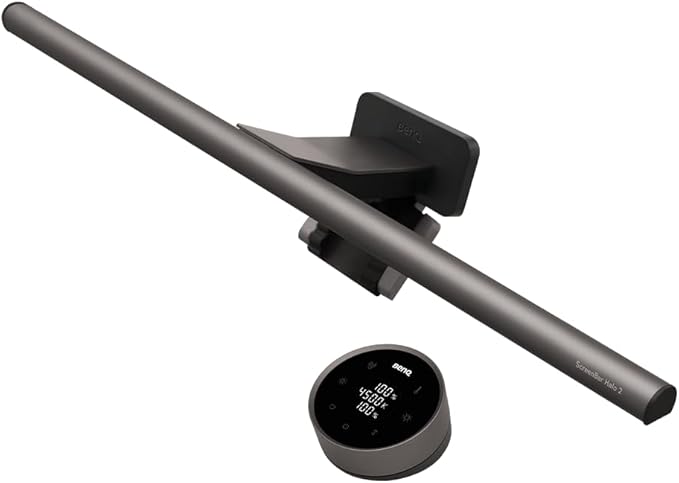
BenQ ScreenBar Monitor Light
Mounts on top of your monitor, takes zero desk space. Asymmetric optical design prevents screen glare. Auto-dimming adjusts to ambient light. Illuminates your workspace without blinding you on calls.
View on AmazonThe BenQ ScreenBar is particularly brilliant because it lights your desk without creating screen reflections or appearing in your webcam frame. It’s designed specifically for computer work.
5. A Quality Keyboard and Mouse
Your hands touch your keyboard and mouse more than any other objects during work hours. Ergonomic input devices prevent repetitive strain injuries and make typing genuinely comfortable.
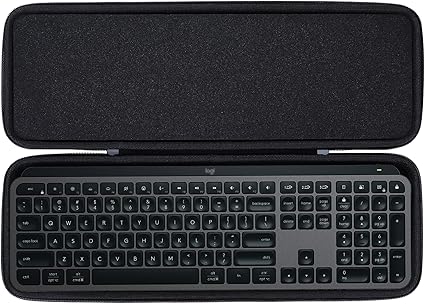
Logitech MX Keys Advanced Wireless Keyboard
Perfect-stroke keys for fast, accurate typing. Connects to three devices and switches instantly. Smart illumination adapts to lighting. USB-C charging lasts 10 days on full brightness.
View on Amazon
Logitech MX Master 3S Wireless Mouse
Ergonomic sculpted shape fits your hand naturally. Quiet clicks for shared spaces. MagSpeed scroll wheel handles 1,000 lines per second. Customizable buttons for workflow shortcuts.
View on AmazonThe Setup That Works
Here’s how these five essentials work together:
- Monitor at eye level prevents neck strain
- Webcam at monitor-top creates natural eye contact on calls
- Chair supporting your spine enables all-day comfort
- Task lighting illuminates without causing strain
- Ergonomic inputs protect your hands and wrists
Each piece supports the others. Remove one, and the whole system suffers. Start with whatever causes you the most pain (literally or figuratively) and build from there.
Common WFH Setup Mistakes
Having reviewed dozens of home office setups, here are the mistakes I see most often:
- Monitor too low: The top of your screen should be at or slightly below eye level
- Chair too low/high: Feet should be flat on the floor, thighs parallel to ground
- Overhead lighting only: Creates harsh shadows and camera hotspots
- Keyboard on desk surface: Should be at elbow height or slightly below
- Facing a window: Backlight makes you a silhouette on video calls
For more workspace optimization, check our guide on space-saving products for modern homes.